Student Milestone States

The following icons are used to indicate the different states of a Milestone.

In Progress: When a milestone is released according to the preset Milestone Released Date, the status of a milestone is set to “In Progress” mode and it allows a student to interact with the milestone by uploading files. This icon represents “In Progress” status progress

This means that student has to upload a file.

Tutor Action: If the predefined workflow for a particular “Progress Milestone”  allows a Tutor intervention, soon after a student has uploaded a file for that milestone and submit the milestone, the status is changed to “Tutor Action”. This icon represents “Tutor Action” status t

This means that the assigned tutor of the student has to review the submission

Student Re-upload: If Tutor/Coordinator/Sub Dean/Examiner is not happy with the submission made by the student, a further request to re-upload can be made from the system. If such a request is made, the status of the milestone becomes “Student Re-upload” which is represented by this icon re_upload

This means that the student needs to re-upload the assignment related files for that milestone

Research Coordinator Action: If the predefined workflow for a particular “Progress Milestone”  allows a Research Coordinator intervention, either a student has submitted files for the milestone or a Tutor has made Satisfactory review, the status is changed to “Research Coordinator Action”. This icon represents “Research Coordinator Action” status r

This means that the assigned Research Coordinator of the student has to review the submission

Sub Dean Action: If the predefined workflow for a particular “Progress Milestone”  allows a Sub Dean intervention, either a student has submitted files for the milestone or a Research Coordinator has made Satisfactory review, the status is changed to “Sub Dean Action”. This icon represents “Sub Dean Action” status d

This means that the assigned Sub Dean has to review the submission

MDWombat Admin Action: According to the predefined workflow for a Milestone whoever finally submits a Satisfactory review or the due date for the Milestone elapses, the status of the Milestone is changed to “MDWombat Admin Action” and it is represented by this icon: w

This means that the MDWombat Admin may review the submission or after the “Comment Release Date” the score is automatically assigned by the system

Completed with Satisfactory Score: MDWombat admin can either manually set the status or system can automatically assign a score based on the satisfactory scores obtained from others. It is represented by success icon.

This means that the milestone is completed with success

Completed with Unsatisfactory Score: MDWombat admin can either manually set the status or system can automatically assign a score based on the satisfactory scores obtained from others. It is represented by stop icon.

This means that the milestone is completed with failure

Closed by Admin: MDWombat admin can close the milestone for a particular student. If Admin has done so for a particular student, the following icon will appear to indicate this status close-admin

This means that the milestone is closed by the Admin and student cannot interact

Examiner Action: If this is a “Examiner Milestone” and a student has submitted files for the milestone, the status is changed to “Examiner Action”. This icon represents “Examiner Action” status e

This means that the assigned Examiner(s) of the student has to review the submission

Daily Scheduled Jobs

The list of daily scheduled jobs

  • Inform relevant students about the release of a Milestone to work on
  • Send reminder (7 Days before the Due Date) to relevant students to complete their Milestones
  • Send reminder (24 hours before the Due Date) to relevant students to complete their Milestones
  • To relevant Tutors: Send a notification email with a list of students whose milestone to review
  • To relevant Examiners: Send a notification email with a list of students whose milestone to review
  • To relevant Research Coordinators: Send a notification email with a list of students whose milestone to review
  • To relevant Research Subdeans: Send a notification email with a list of students whose milestone to review
  • To relevant Research MDWombat Admin: Send a notification email with a list of students whose milestone to review
  • Set the ‘Publish’ flag for the comments and milestone if Today is the ‘Comments Release Day’
  • Student data sync from MPAU system

ETL Process

Step 1: The following folders should exist on the Database server. If not, the folders should be created with appropriate write permission.

/srv/etl

/srv/etl/new
/srv/etl/done
/srv/etl/logs

Step 2: The other process that will extract data from MPAU  as a CSV file on a daily basis is expected to be placed in the /srv/etl/new folder. The filename format is recommended as: yyyy-mm-dd.csv

The columns in the CSV file must be as follows:

degree
unikey
sid
enrolmentyear
cohortyear
stage
title
lastname
givennames
gender
flexsisstatus
majorsubschool
email
mobileph

Step 3: The script file (load.php) that will process the CSV file is located in /srv/etl/script folder

Step 4: The bash script which should be placed in the crontab is /srv/etl/extract.sh this script will invoke the load.php file and the load does the followings as mentioned in the next step.

Step 5:

  • Checks if there is any file to process in /srv/etl/new folder, if there is file then check the validity of the file in terms of content (the columns, and file type).
  • If the file content is valid, the data is loaded onto tbl_etl_load table for the MDWombat Application to process
  • The data loading operation log is written in the /srv/etl/logs/ folder. The filename convention is: etl_processed_unixtimestamp (eg, etl_processed_1425530922) An example log content is cited below:

    File format, content = OK, filename =>2015-5-5.csv
    clearning tbl_etl_load ….. Successful
    Rec #:1Load SQL:
    INSERT INTO tbl_etl_load (degree, unikey, sid, enrolmentyear, cohortyear, stage, title, lastname, givennames, gender, flexsisstatus, majorsubschool, email, mobileph) VALUES (‘M.D’, ‘jcit0000’, ‘300000000’, ‘2014’, ‘2014’, ‘Stage One’, ‘MISS ‘, ‘CITIZEN1’, ‘JESSICA’, ‘Female’, ‘Continuing’, ‘Westmead’, ‘[email protected]’, ‘400000000’);
    Rec #:2Load SQL:
    INSERT INTO tbl_etl_load (degree, unikey, sid, enrolmentyear, cohortyear, stage, title, lastname, givennames, gender, flexsisstatus, majorsubschool, email, mobileph) VALUES (‘M.D’, ‘jcit0001’, ‘300000001’, ‘2014’, ‘2014’, ‘Stage One’, ‘MR ‘, ‘CITIZEN2’, ‘John’, ‘Male’, ‘Continuing’, ‘Westmead’, ‘[email protected]’, ‘400000001’);
    Rec #:3Load SQL:
    INSERT INTO tbl_etl_load (degree, unikey, sid, enrolmentyear, cohortyear, stage, title, lastname, givennames, gender, flexsisstatus, majorsubschool, email, mobileph) VALUES (‘M.D’, ‘bjan1234’, ‘123456’, ‘2014’, ‘2015’, ‘Stage two’, ‘MRS’, ‘JANE2’, ‘JANENEW’, ‘Female’, ‘Continuing’, ‘Nepean’, ‘[email protected]’, ‘468889204’);
    All Data Inserted for Processing….. Successful
    2015-5-5.csv copied to /srv/etl/done
    2015-5-5.csv succesfully deleted from /srv/etl/new
    tbl_etl_load_history record….. Successful

  • After the load the input file is copied back to /srv/etl/done folder and an entry to the tbl_etl_load_history table is made to keep the record.

Step 6: There is a Job on the MDWombat (https://md-web-uat-1.ucc.usyd.edu.au/mdwombat/index.php?r=cronjob) application that can be scheduled to run after the above step.

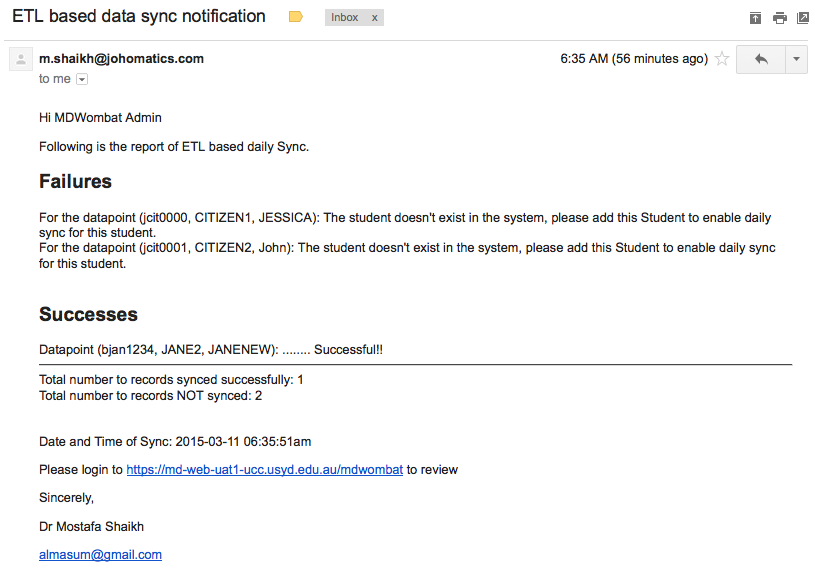
Step 7: After running the job in Step 6 (which basically does the data transformation of the loaded data  and then synchronisation with the existing matching records) email(s) are sent to the MDWombat Admin notifying the details of the result. A Sample email is provided as follows:

Sample Email - ETL Result Notification
Sample Email – ETL Result Notification