Step 1: The following folders should exist on the Database server. If not, the folders should be created with appropriate write permission.
/srv/etl
/srv/etl/new
/srv/etl/done
/srv/etl/logs
Step 2: The other process that will extract data from MPAU as a CSV file on a daily basis is expected to be placed in the /srv/etl/new folder. The filename format is recommended as: yyyy-mm-dd.csv
The columns in the CSV file must be as follows:
|
Step 3: The script file (load.php) that will process the CSV file is located in /srv/etl/script folder
Step 4: The bash script which should be placed in the crontab is /srv/etl/extract.sh this script will invoke the load.php file and the load does the followings as mentioned in the next step.
Step 5:
- Checks if there is any file to process in /srv/etl/new folder, if there is file then check the validity of the file in terms of content (the columns, and file type).
- If the file content is valid, the data is loaded onto tbl_etl_load table for the MDWombat Application to process
- The data loading operation log is written in the /srv/etl/logs/ folder. The filename convention is: etl_processed_unixtimestamp (eg, etl_processed_1425530922) An example log content is cited below:
File format, content = OK, filename =>2015-5-5.csv
clearning tbl_etl_load ….. Successful
Rec #:1Load SQL:
INSERT INTO tbl_etl_load (degree, unikey, sid, enrolmentyear, cohortyear, stage, title, lastname, givennames, gender, flexsisstatus, majorsubschool, email, mobileph) VALUES (‘M.D’, ‘jcit0000’, ‘300000000’, ‘2014’, ‘2014’, ‘Stage One’, ‘MISS ‘, ‘CITIZEN1’, ‘JESSICA’, ‘Female’, ‘Continuing’, ‘Westmead’, ‘[email protected]’, ‘400000000’);
Rec #:2Load SQL:
INSERT INTO tbl_etl_load (degree, unikey, sid, enrolmentyear, cohortyear, stage, title, lastname, givennames, gender, flexsisstatus, majorsubschool, email, mobileph) VALUES (‘M.D’, ‘jcit0001’, ‘300000001’, ‘2014’, ‘2014’, ‘Stage One’, ‘MR ‘, ‘CITIZEN2’, ‘John’, ‘Male’, ‘Continuing’, ‘Westmead’, ‘[email protected]’, ‘400000001’);
Rec #:3Load SQL:
INSERT INTO tbl_etl_load (degree, unikey, sid, enrolmentyear, cohortyear, stage, title, lastname, givennames, gender, flexsisstatus, majorsubschool, email, mobileph) VALUES (‘M.D’, ‘bjan1234’, ‘123456’, ‘2014’, ‘2015’, ‘Stage two’, ‘MRS’, ‘JANE2’, ‘JANENEW’, ‘Female’, ‘Continuing’, ‘Nepean’, ‘[email protected]’, ‘468889204’);
All Data Inserted for Processing….. Successful
2015-5-5.csv copied to /srv/etl/done
2015-5-5.csv succesfully deleted from /srv/etl/new
tbl_etl_load_history record….. Successful - After the load the input file is copied back to /srv/etl/done folder and an entry to the tbl_etl_load_history table is made to keep the record.
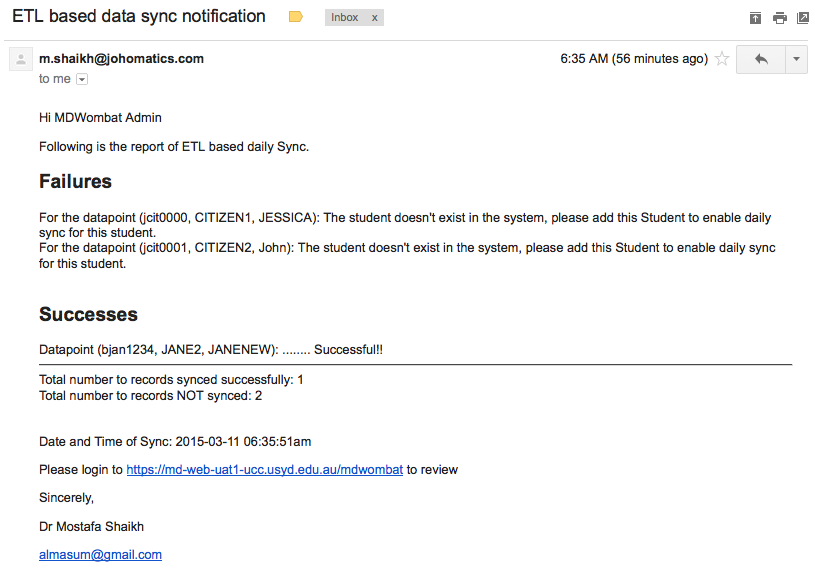
Step 6: There is a Job on the MDWombat (https://md-web-uat-1.ucc.usyd.edu.au/mdwombat/index.php?r=cronjob) application that can be scheduled to run after the above step.
Step 7: After running the job in Step 6 (which basically does the data transformation of the loaded data and then synchronisation with the existing matching records) email(s) are sent to the MDWombat Admin notifying the details of the result. A Sample email is provided as follows: